Get real-time market-moving news directly inside the TradeLocker platform.
Stay on top of the Forex, Crypto, and Stocks news with sentiment labels added to every article so you can understand the market mood faster.
Step 1: Choose the instrument
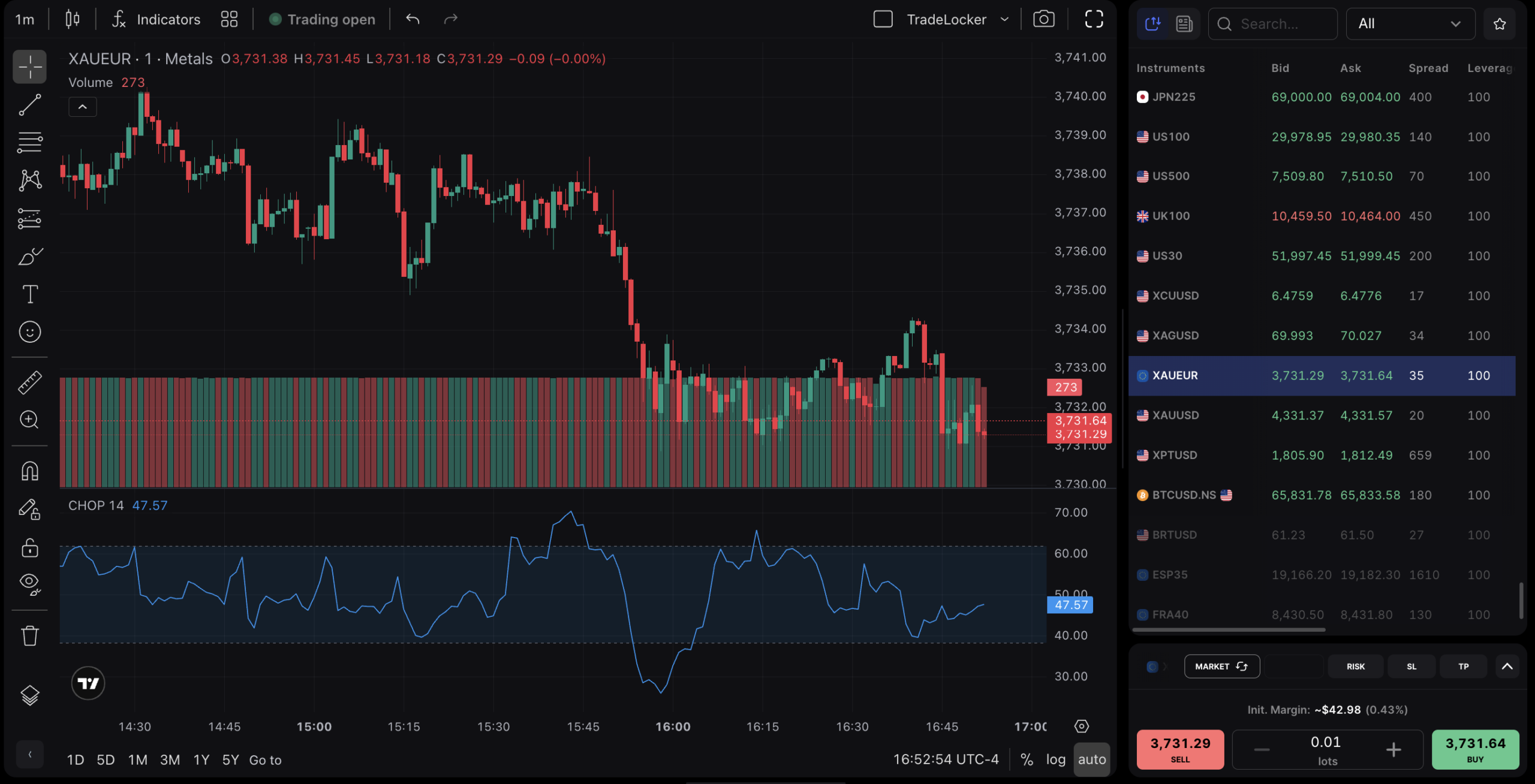
Navigate to the right-hand side of the desktop screen to choose the instrument you’re trading, like BTCUSD, EURUSD, or USDJPY.
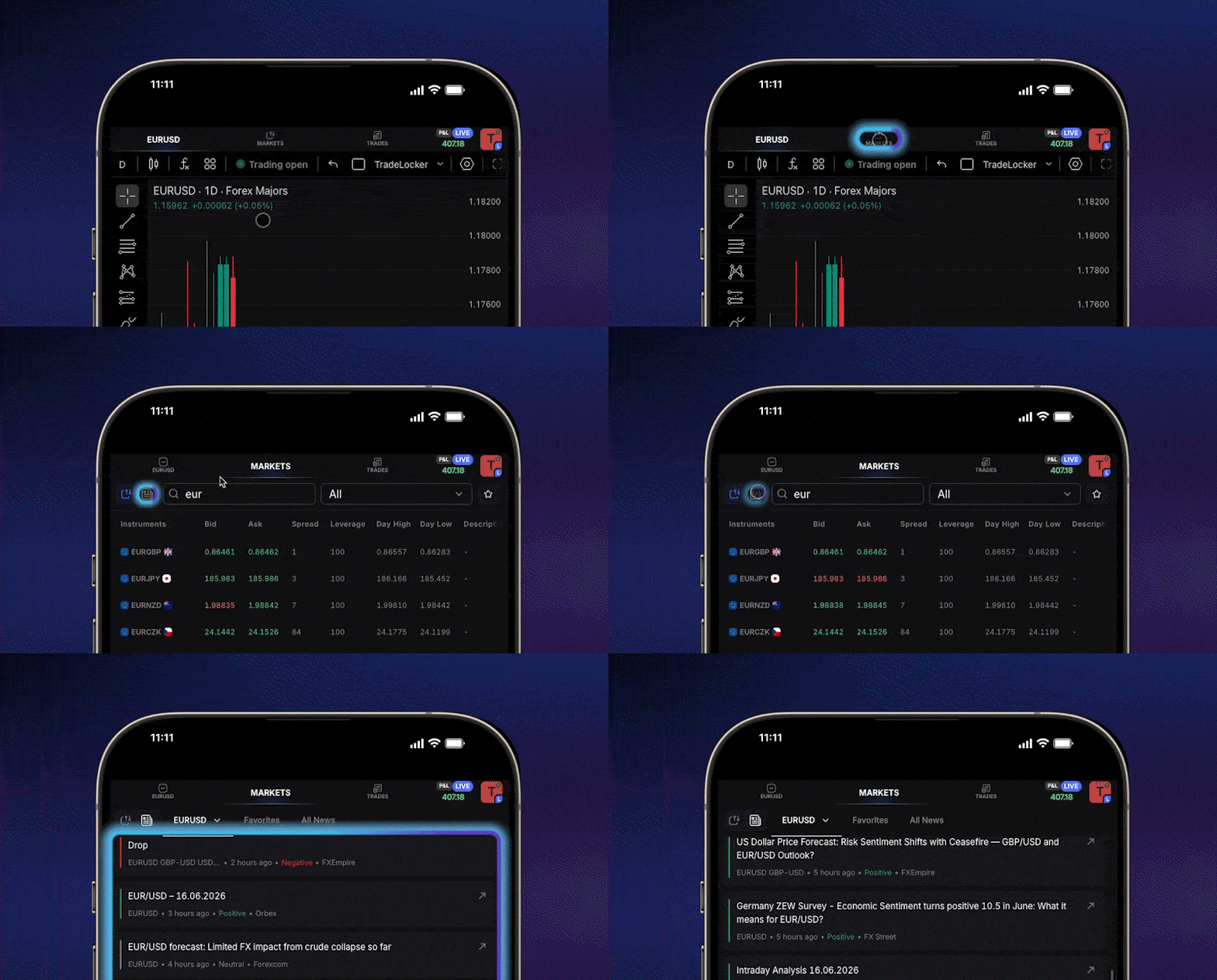
If you’re on mobile, simply open the second tab called Markets.
Step 2: Find the “News” tab
Inside the Markets panel, click on the “News” tab in the top left corner. This is where all relevant news for the selected pair is displayed.
Step 3: Scan the headlines
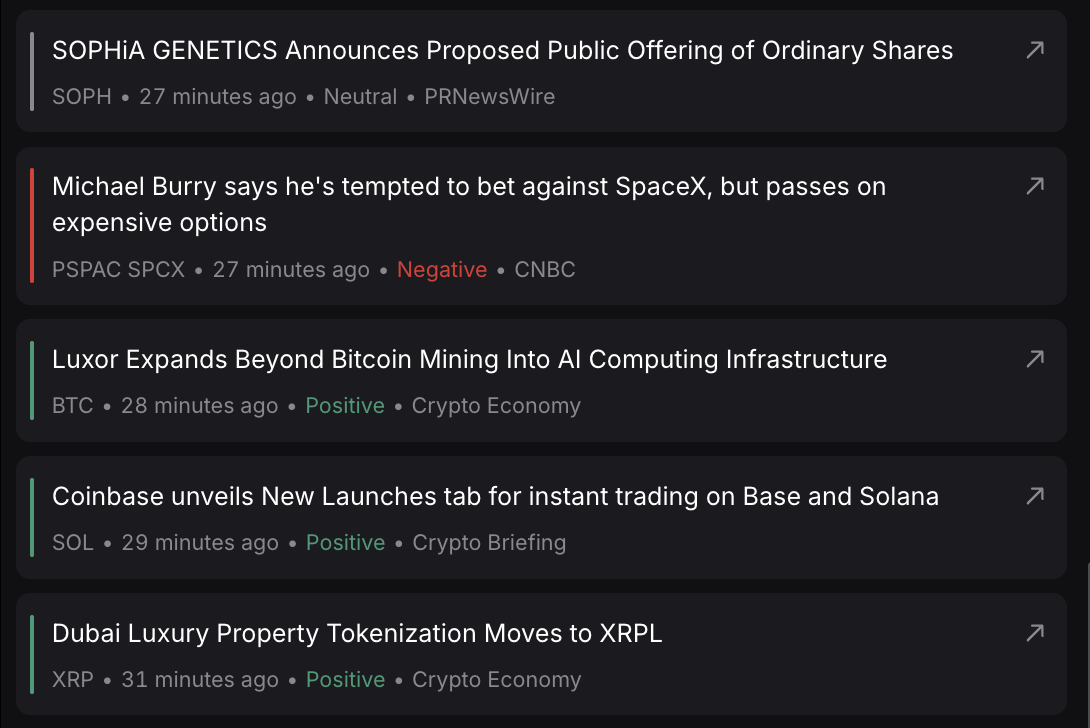
The news feed is updated in real-time and shows headlines from trusted financial and crypto news sources.
Step 4: Click for more info
Tap on any source name to open the full article in a new tab so you can quickly understand the context behind a market move.
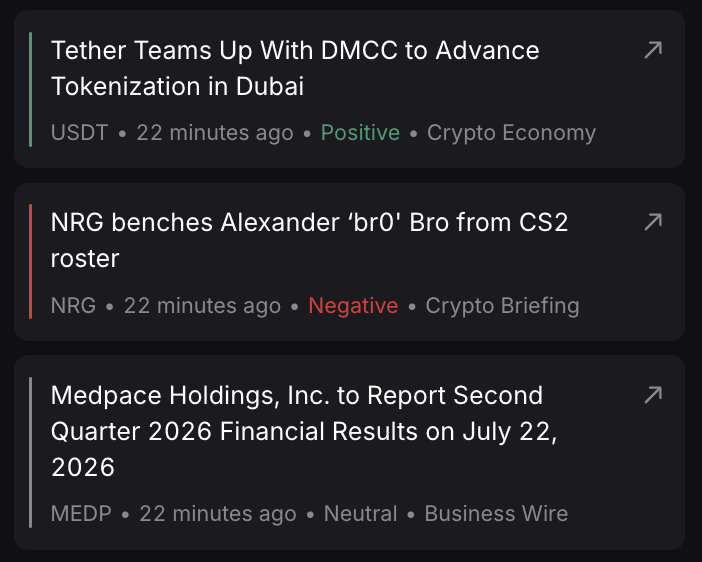
Every article now includes sentiment labels, so you can quickly see whether the market mood is positive, negative, or neutral.
Tips for using market news on TradeLocker
- Before opening a position, you can now check the latest headlines for your chosen pair.
- Look for news that could explain price spikes, volatility, or trend reversals.
- Combine news insights with your technical analysis to trade with more confidence.
- Major news drops often create sharp price movements.
Use this feature to stay informed and avoid surprises, especially before entering trades during volatile sessions.
