Multiple chart layout lets you open up to 4 charts side by side inside TradeLocker’s chart panel.
Each chart is fully independent, which allows you to set a different instrument, timeframe, or resolution on each one.
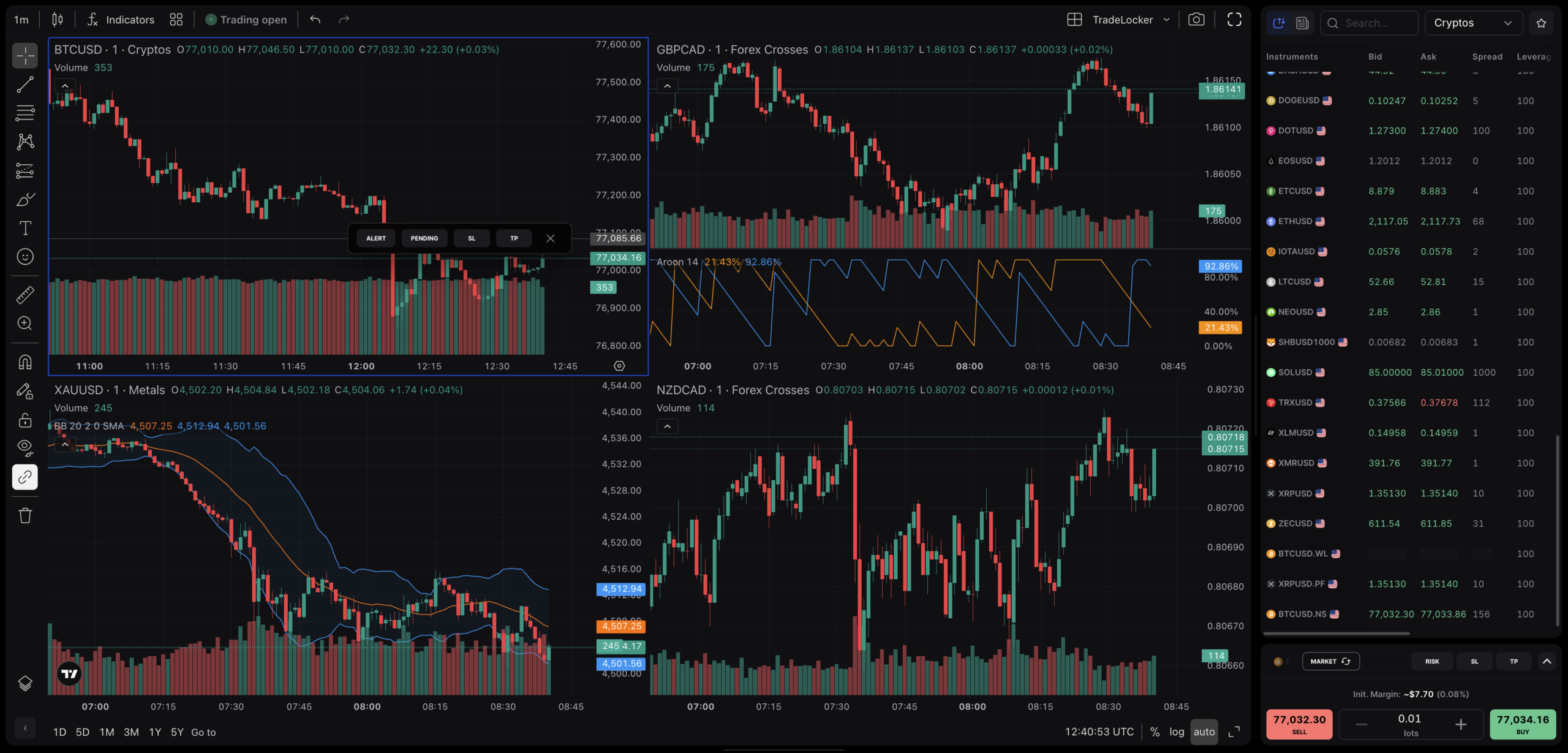
Multiple charts are available to all broker and prop firm account users on TradeLocker.
Using a demo account? This feature is available on live and prop accounts only. Connect a broker or prop account
How to turn on the multiple chart layout
- Navigate to the Chart panel in TradeLocker.
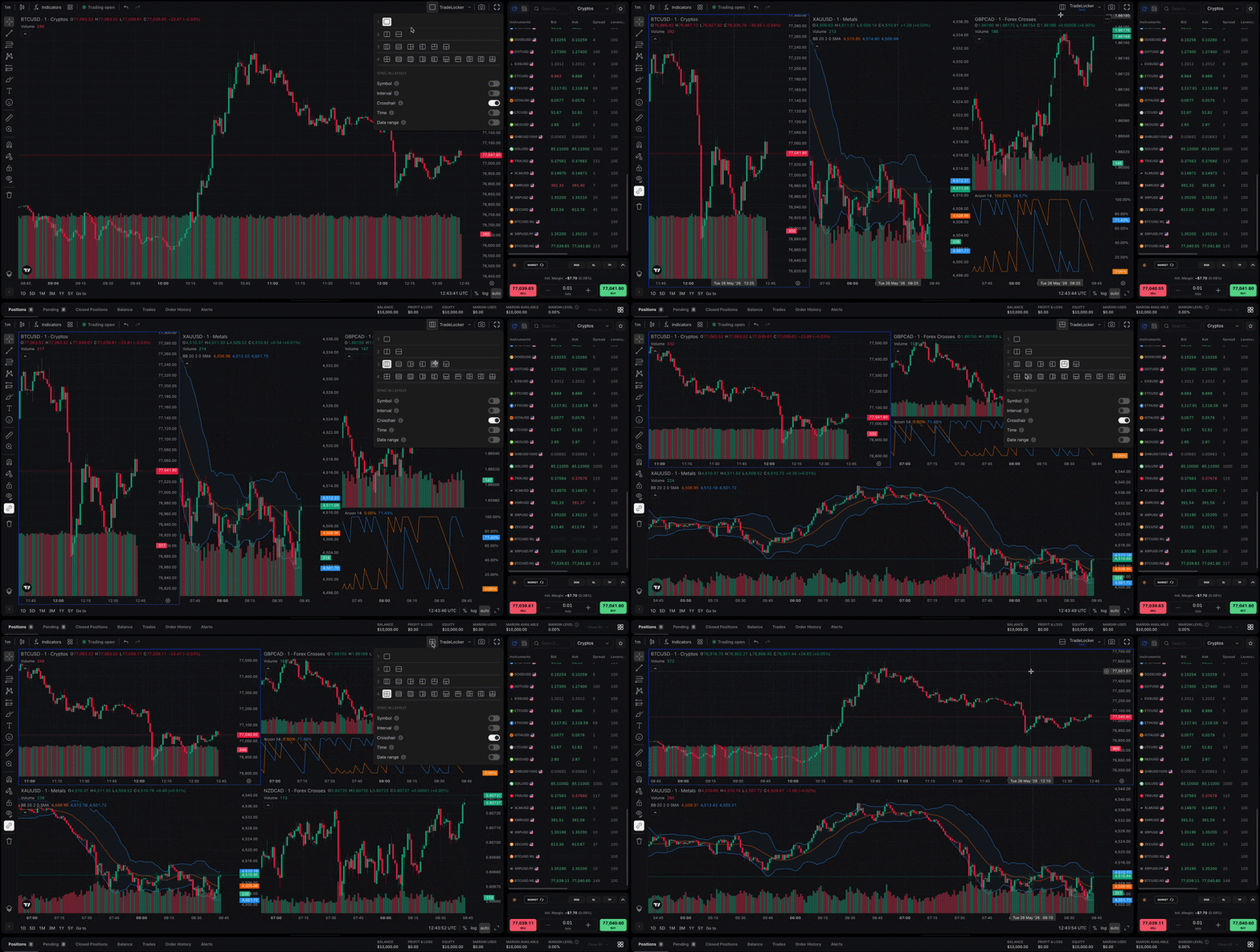
- Click the Multiple Chart icon in the top toolbar.
- Choose your layout (2, 3, or 4 charts).
- Each new chart opens ready to customise. Click on a chart to make it active, then set your symbol and timeframe as usual.
Setting your main chart
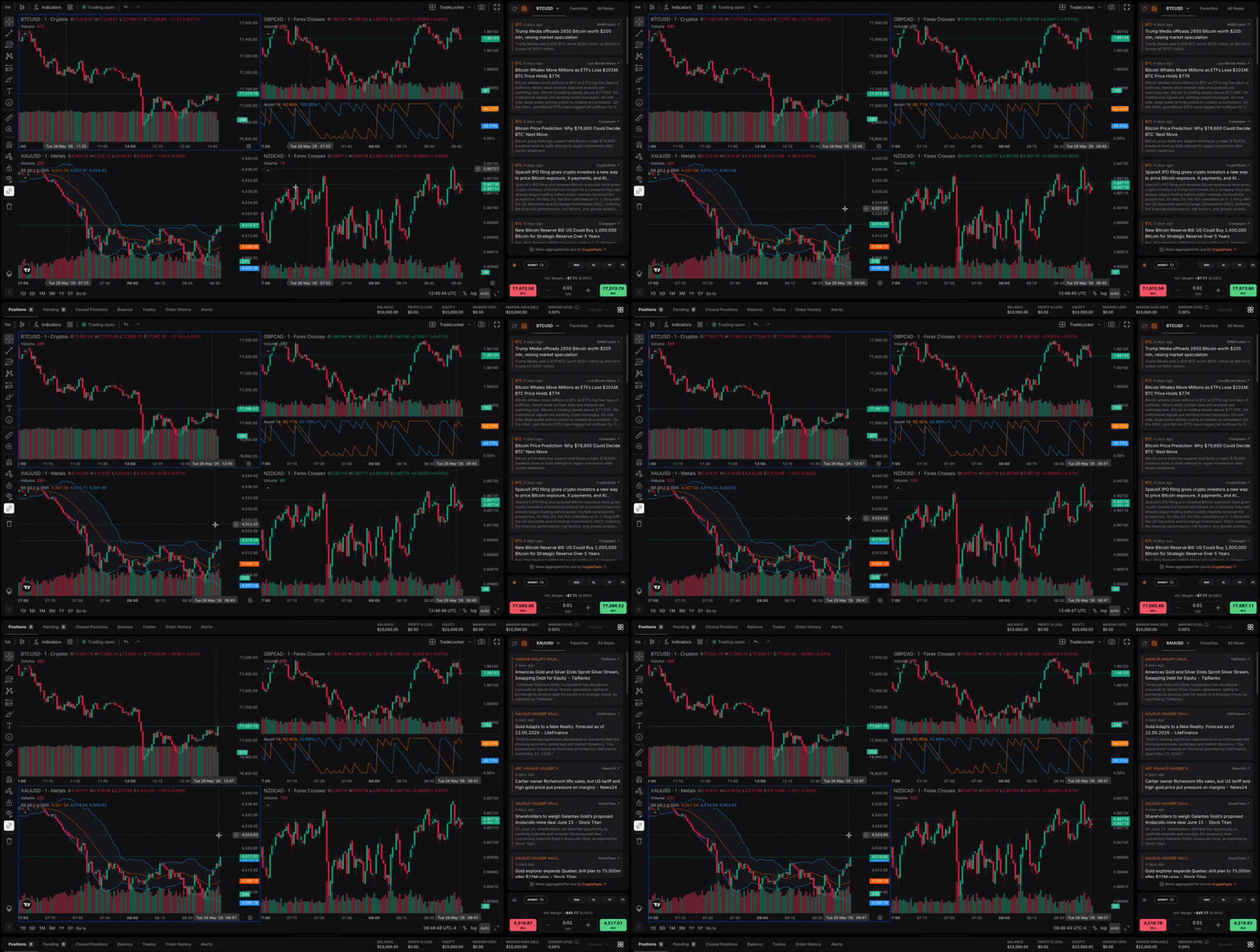
One chart is always your main chart. The main chart controls:
- The instrument selected for trading.
- What appears in the News panel.
- The symbol that updates when you use the market search (Cmd+K / Ctrl+K) or the Markets panel
To change your main chart, simply click on the chart you want to set as main. It will be highlighted with a border.
How to sync charts
You can sync all charts by Symbol, Interval, Time, or Date range. Toggle sync options from the chart toolbar. The changes apply across all open charts instantly.
How to customize each chart independently
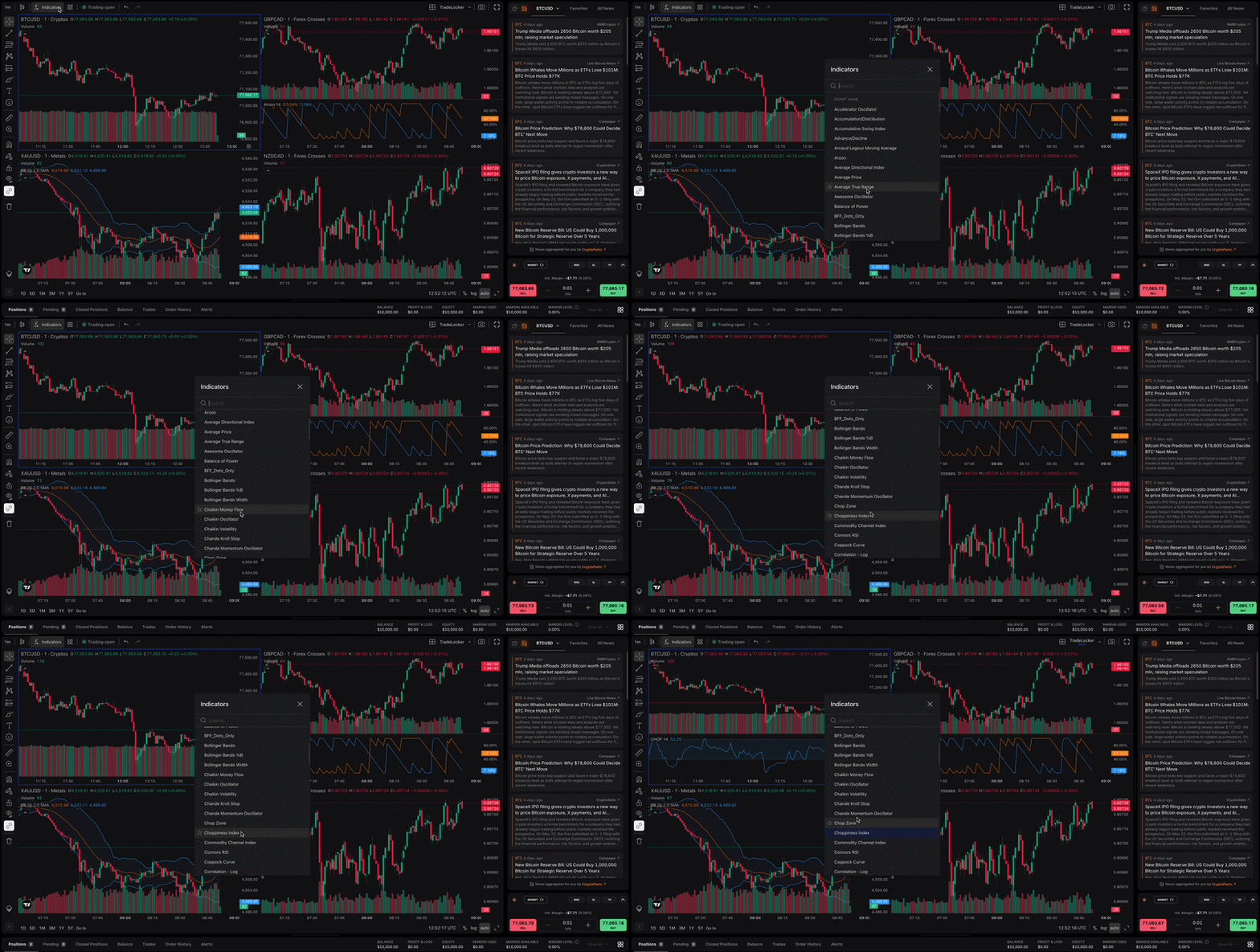
Each chart can have its own:
- Instrument (e.g. EURUSD on Chart 1, GBPUSD on Chart 2)
- Resolution / Timeframe (e.g. 1-minute on Chart 1, 4-hour on Chart 2)
- Indicators and drawings
Note: Some TradeLocker-wide settings apply to all charts: Show Ask Price, Show Heikin Ashi Ask/Bid Price, and Show SL/TP handles.
Using the multiple chart layout on mobile
Multiple charts can be used on desktop, tablet, and mobile. Your layout saves automatically to your account and syncs across all devices.
Important: Layouts are saved at the account level. If you create a 4-chart layout on desktop, you’ll see the same layout when you open the app on mobile. On a small screen, 4 charts will appear smaller.
If you want a cleaner mobile view:
- Create a new layout from within the app and use it as your mobile default, or
- Switch to a single-chart layout when trading on mobile.
Tips for getting the most out of the multiple chart layout
- Day traders: Run a 1-min entry chart alongside a 15-min trend chart
- Scalpers: Watch correlated pairs (e.g. EURUSD + GBPUSD) simultaneously
- Swing traders: Compare the macro view (Daily) with your entry timeframe (1H)
- Algo traders: Monitor multiple instruments your bots are running on
Help us build the perfect trading platform that prioritizes your needs and preferences. Join our Discord community to meet the TradeLocker team and other traders, discuss upcoming features, and chat with us directly.