Your TradeLocker Profile is your single identity on TradeLocker. It brings all your accounts together in one place.
Connect multiple brokers or prop firms, switch between them anytime, and access a free demo account, all with one set of credentials. Sign in with Google or Apple to get started, or use your email address and password.
How to Create a TradeLocker Profile (as a new user)
If you’re new to TradeLocker and don’t have a broker account yet, this is the quickest way in.
Step 1: Go to app.tradelocker.com
Visit app.tradelocker.com to start the sign-up process.
Step 2: Sign up
You’ll be taken to the sign-up screen. Choose how you’d like to register.
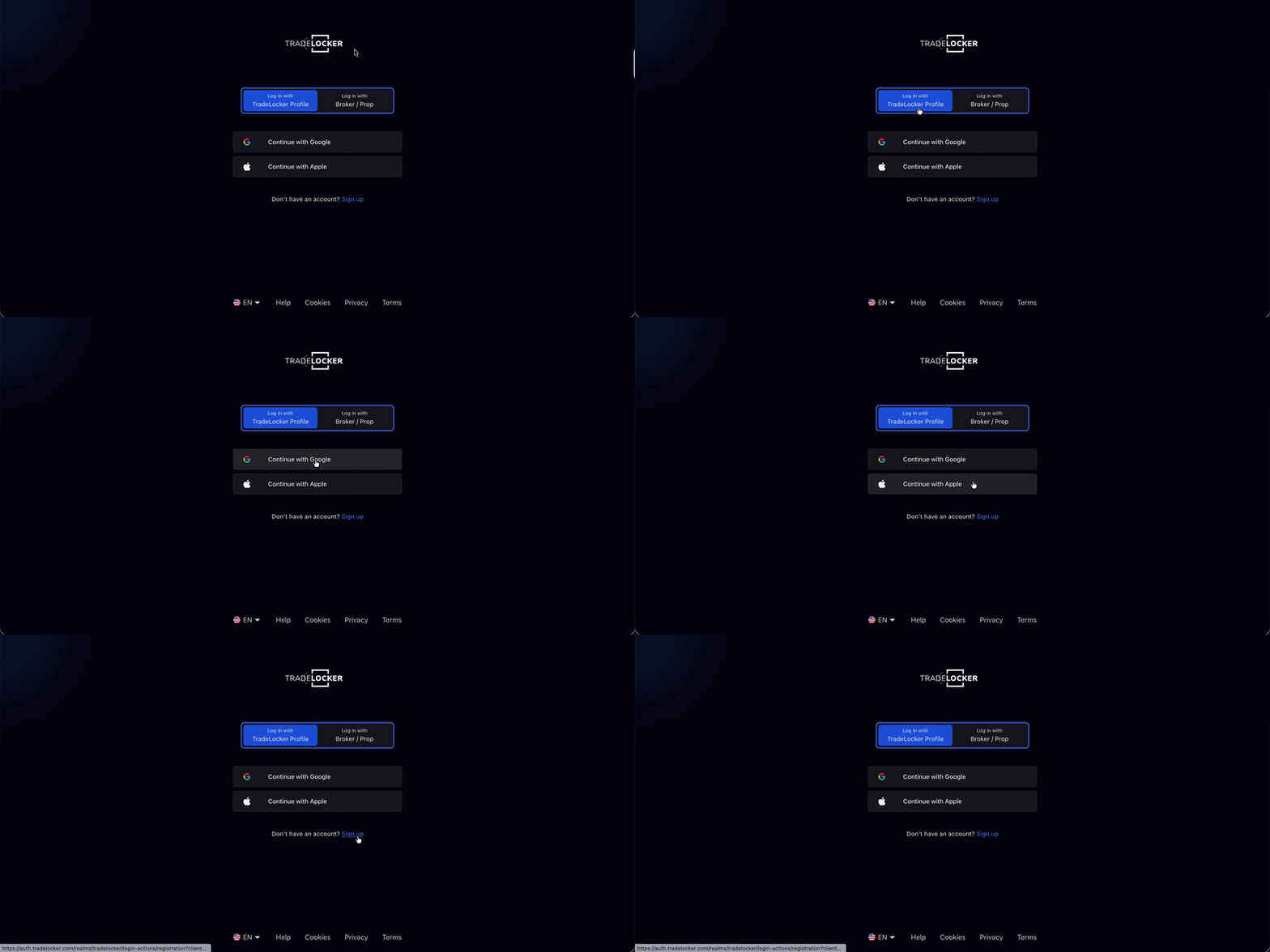
Step 3: Your TradeLocker Profile is ready
And you’re in. Your profile is created and you have a $100,000 virtual demo account automatically set up and ready to use.
Your TradeLocker Demo is free to create. No broker or prop firm account required.
How to Create a TradeLocker Profile (as an existing user)
If you’re already logged in to TradeLocker through a broker or prop firm, you’ll be prompted to create a TradeLocker Profile from inside the platform.
Step 1: Log in
Log in to app.tradelocker.com using the credentials your broker or prop firm provided.
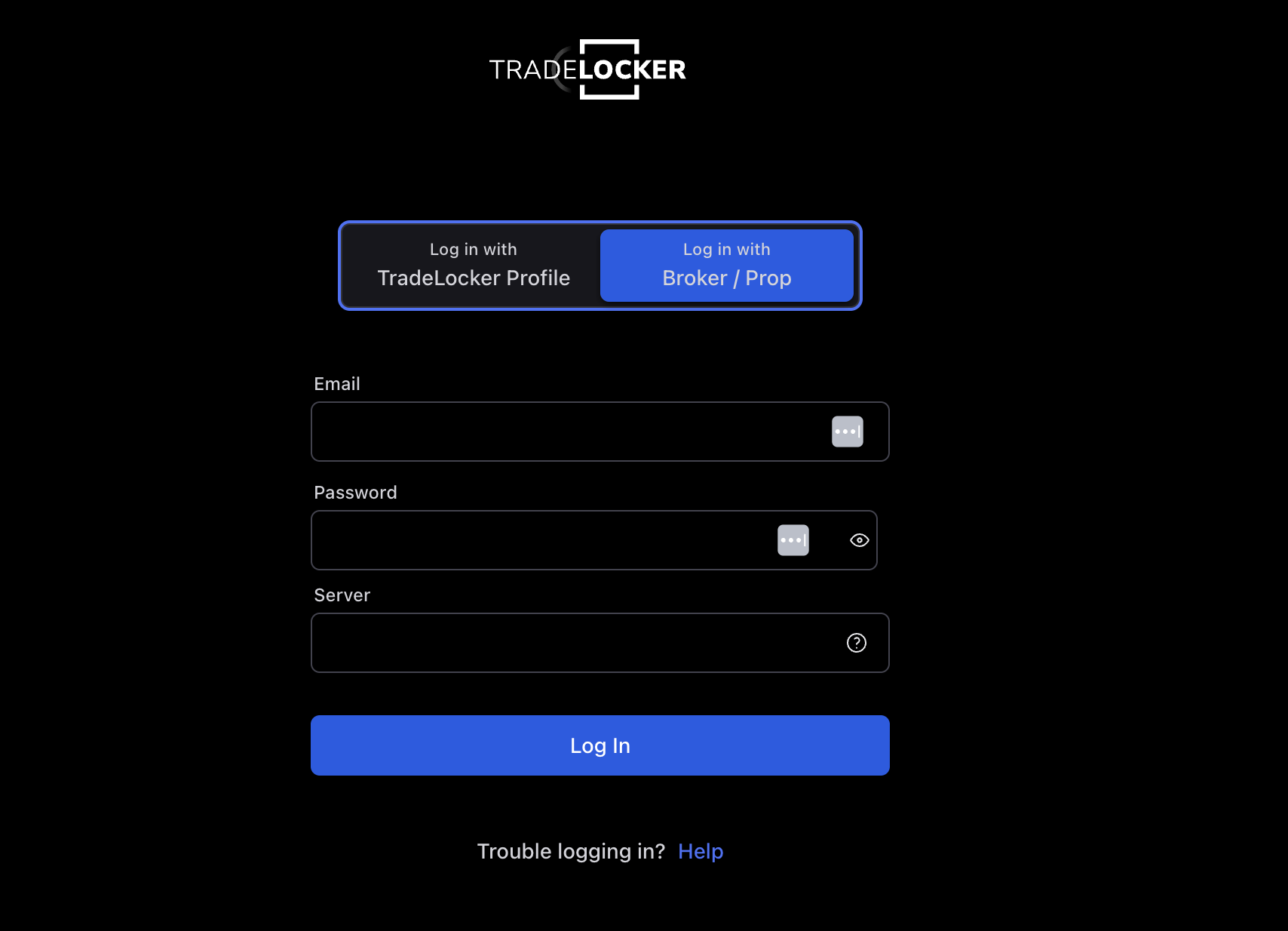
Step 2: Create TradeLocker Profile
Once you’re logged in, a prompt will appear. It shows three things your TradeLocker Profile gives you.
Click Create TradeLocker Profile to continue.
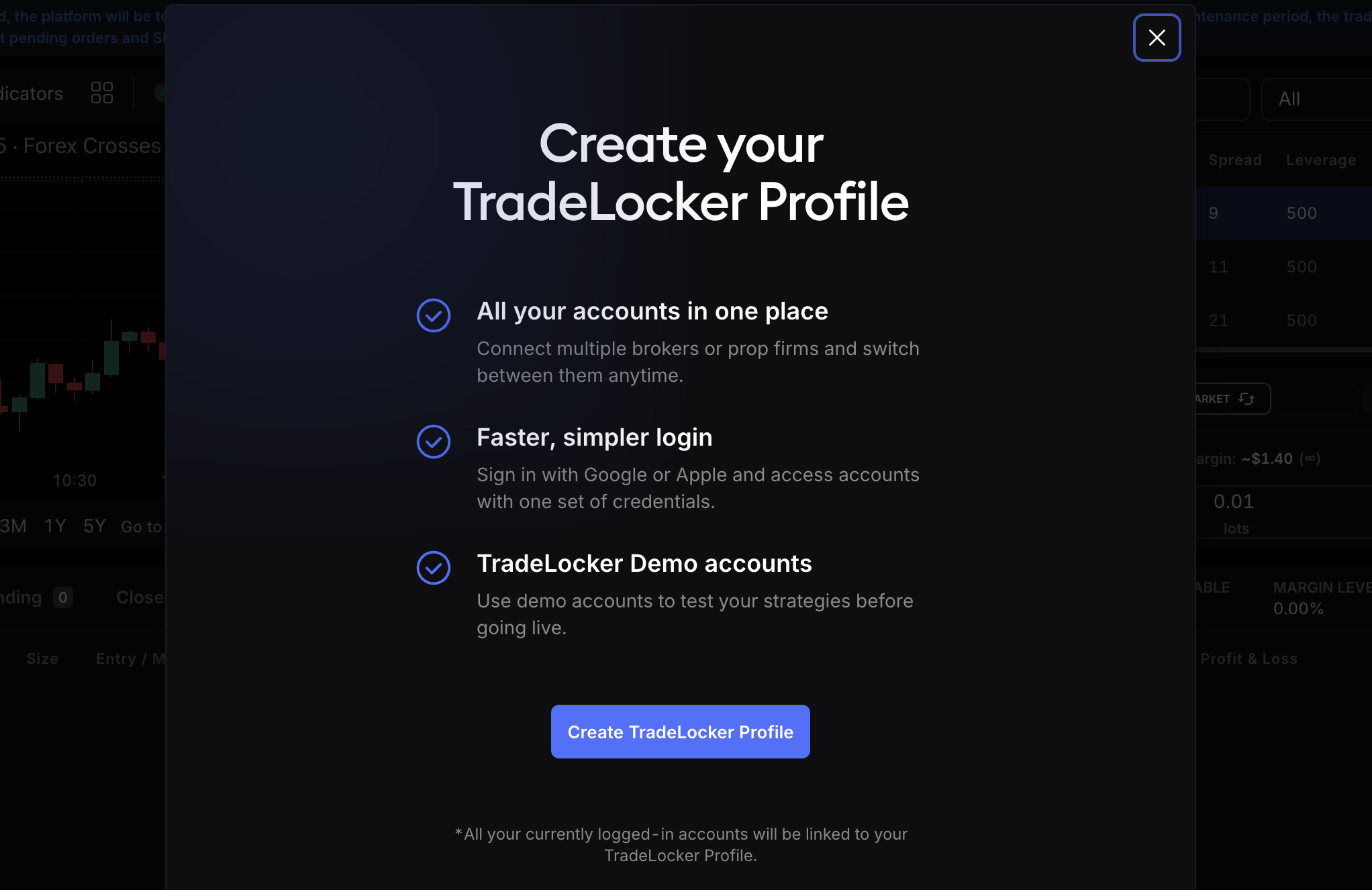
Step 3: Log in with broker/prop firm credentials
Use this if your broker or prop firm gave you a set of trading credentials to access TradeLocker.
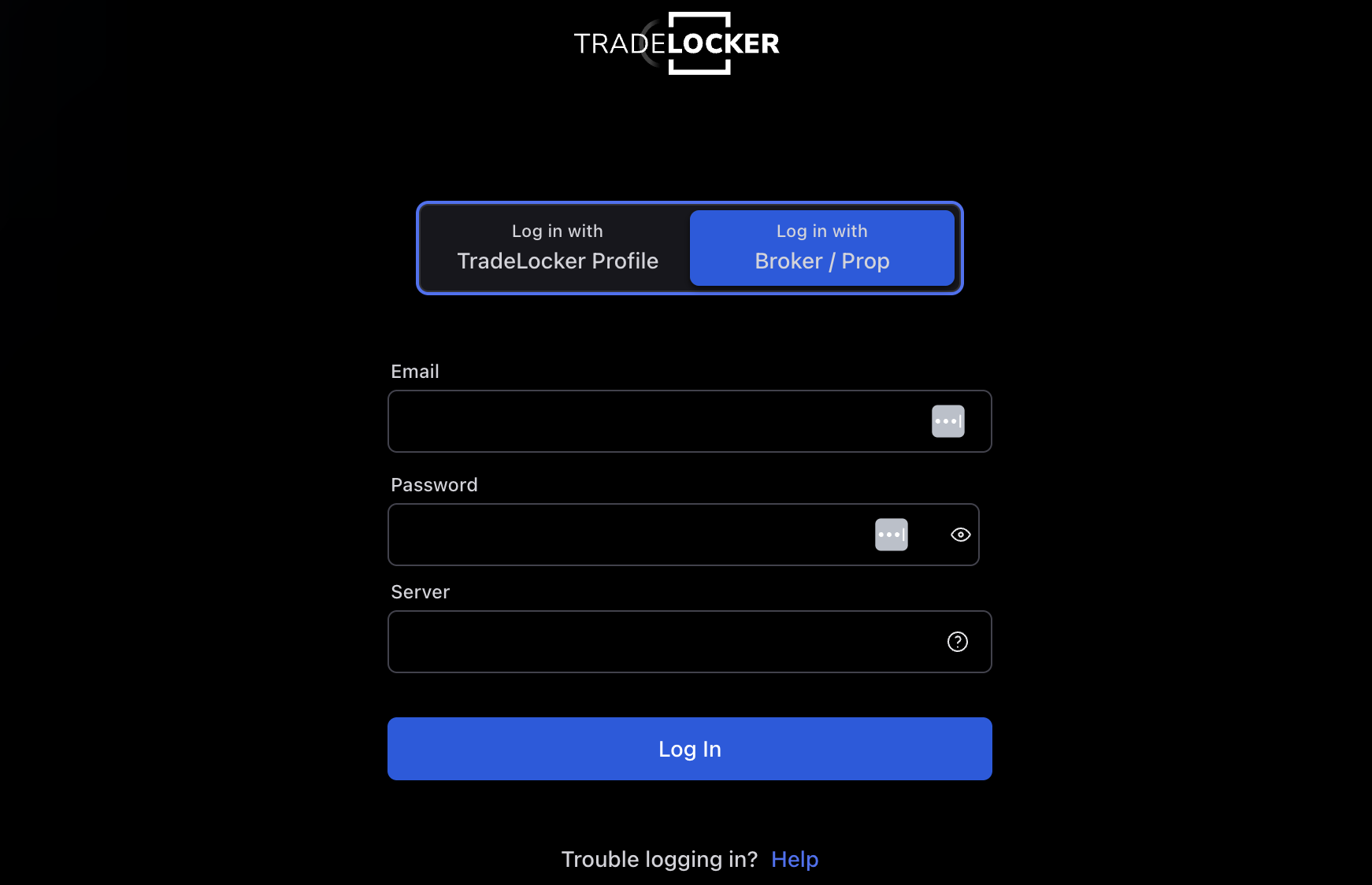
Step 4: Log in with your TradeLocker Profile
Log in with Google or Apple
You’ll land directly on the platform with your demo account ready. If you have broker or prop firm accounts connected to your profile, you can switch between them from the account tab in the bottom left corner.
Step 5: Link your accounts
If you already have an account listed in your profile, click the three dots next to it to manage or reconnect it.
- Press + and select Connect Broker/Prop
- Enter the login credentials provided by your broker or prop firm. You’ll find these in the email you received when you registered with them (account email, password, and server ID)
- Your account is connected and added to your TradeLocker Profile
Adding more accounts to your TradeLocker Profile
Your profile is built to grow with you.
Click the account box in the bottom left corner and press + to add a new account.
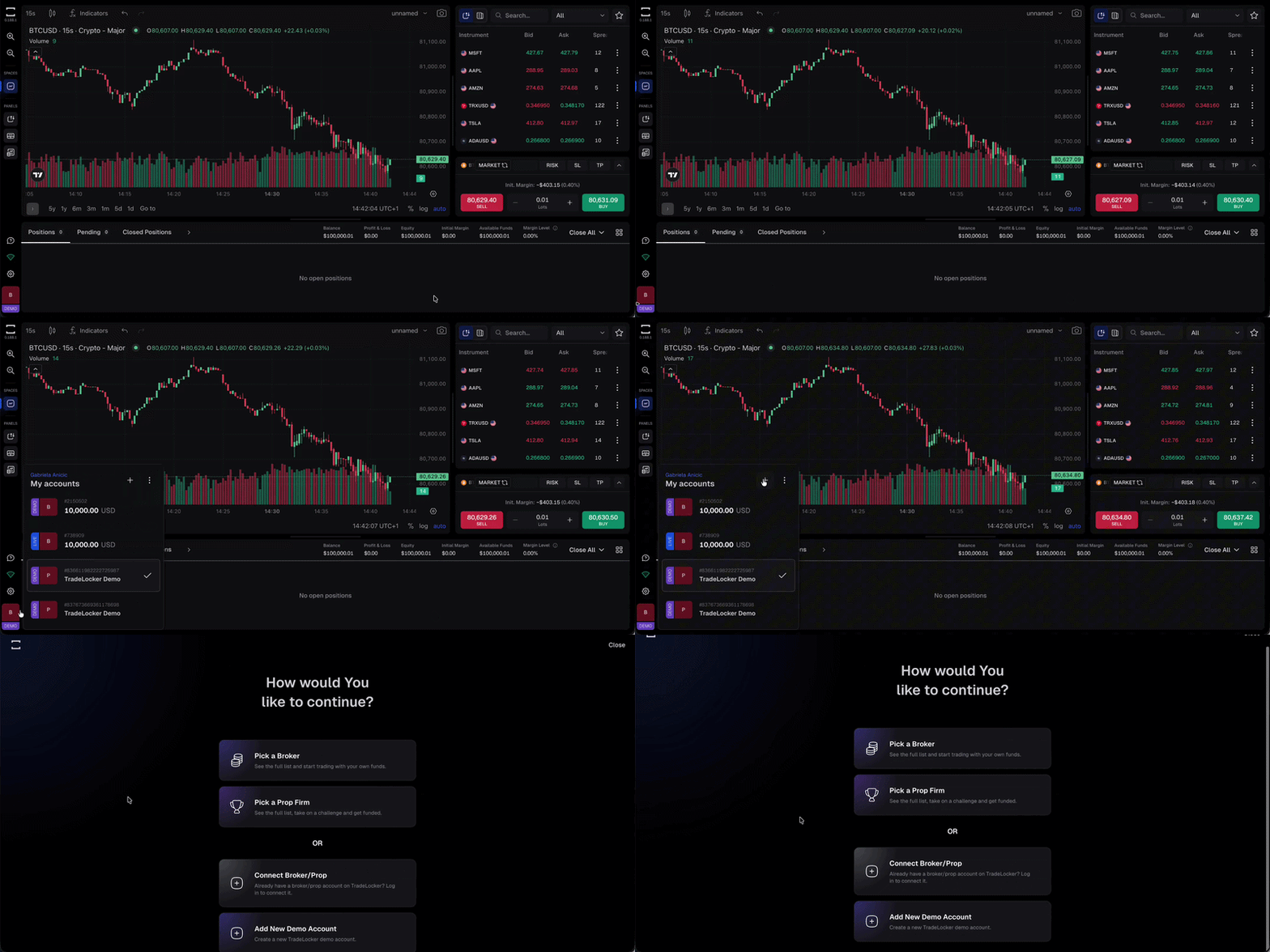
Add a new demo account
- Press + and select Add New Demo Account.
- Your new demo account is created instantly with a $100,000 in virtual balance.
- It appears in your account tab alongside your other accounts.
You can have up to 10 demo accounts under one TradeLocker Profile.
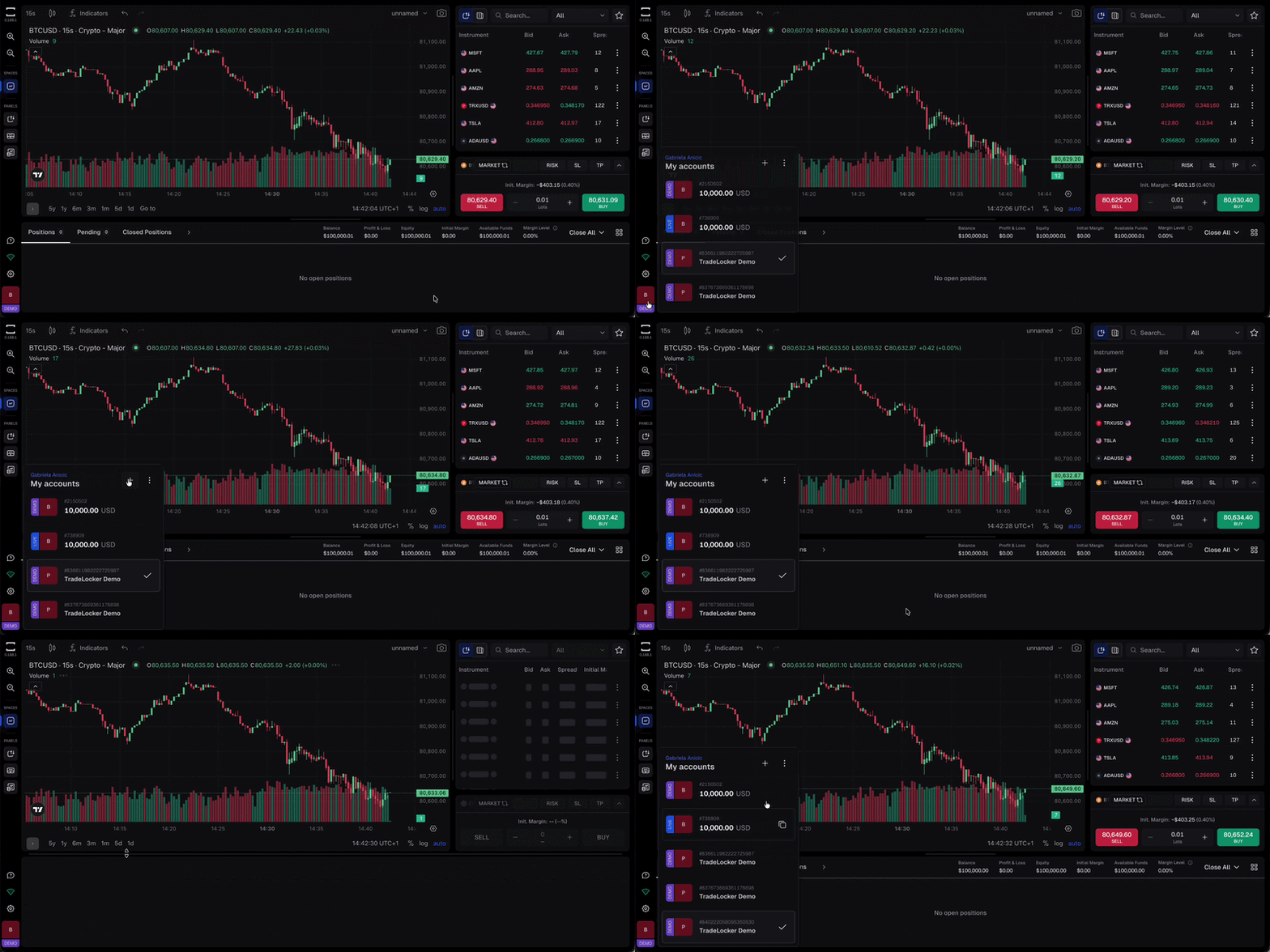
Pick a Broker
- Press + and select Pick a Broker
- You’ll be taken to the TradeLocker Hub — browse the full list of compatible brokers
- Select a broker and follow their sign-up process
- Once registered, your broker account is linked to your TradeLocker Profile
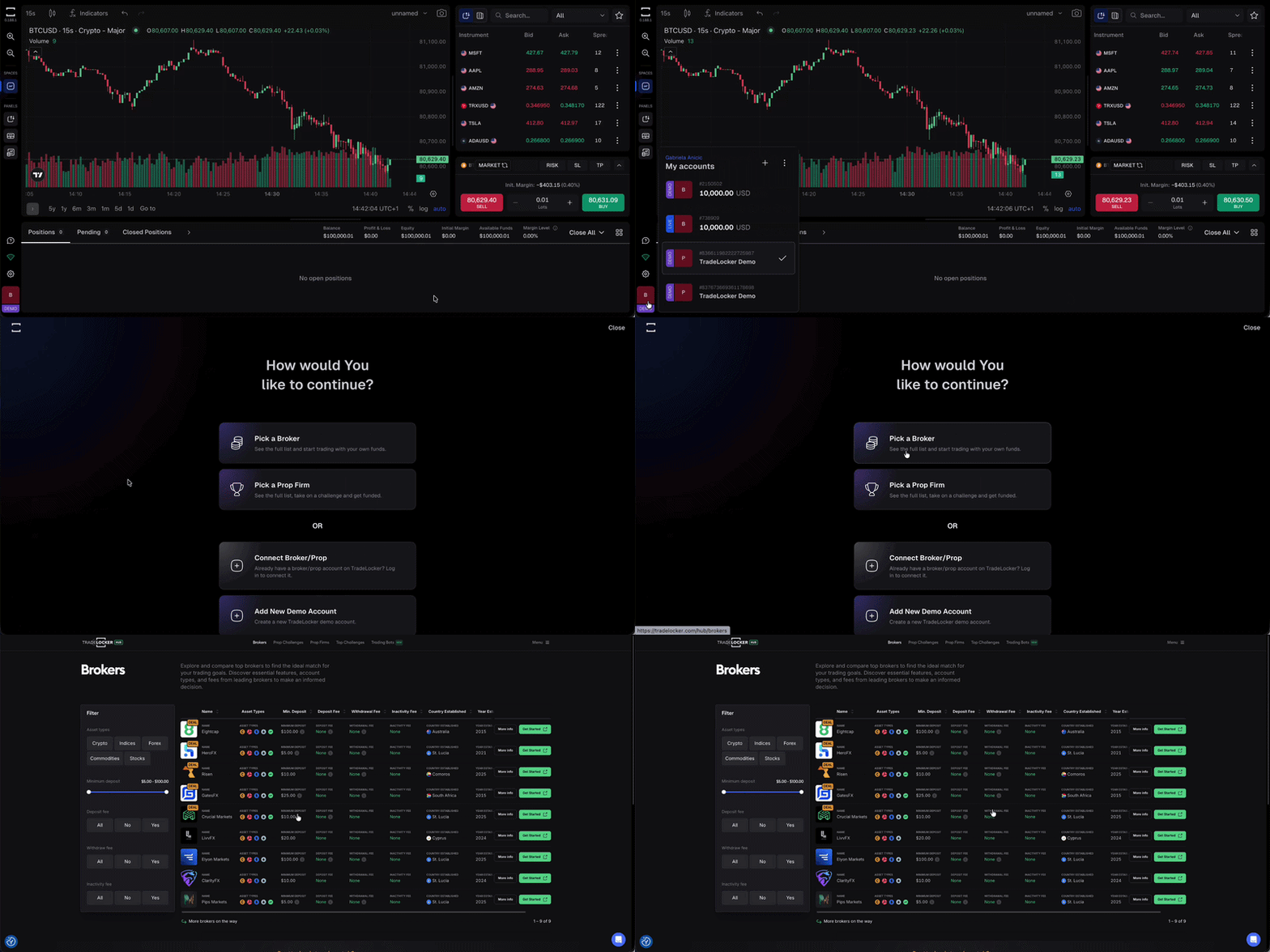
Pick a Prop Firm
- Press + and select Pick a Prop Firm
- You’ll be taken to the TradeLocker Hub — browse the full list of prop firm challenges
- Select a prop firm, take on a challenge, and get funded
- Your prop firm account is linked to your TradeLocker Profile
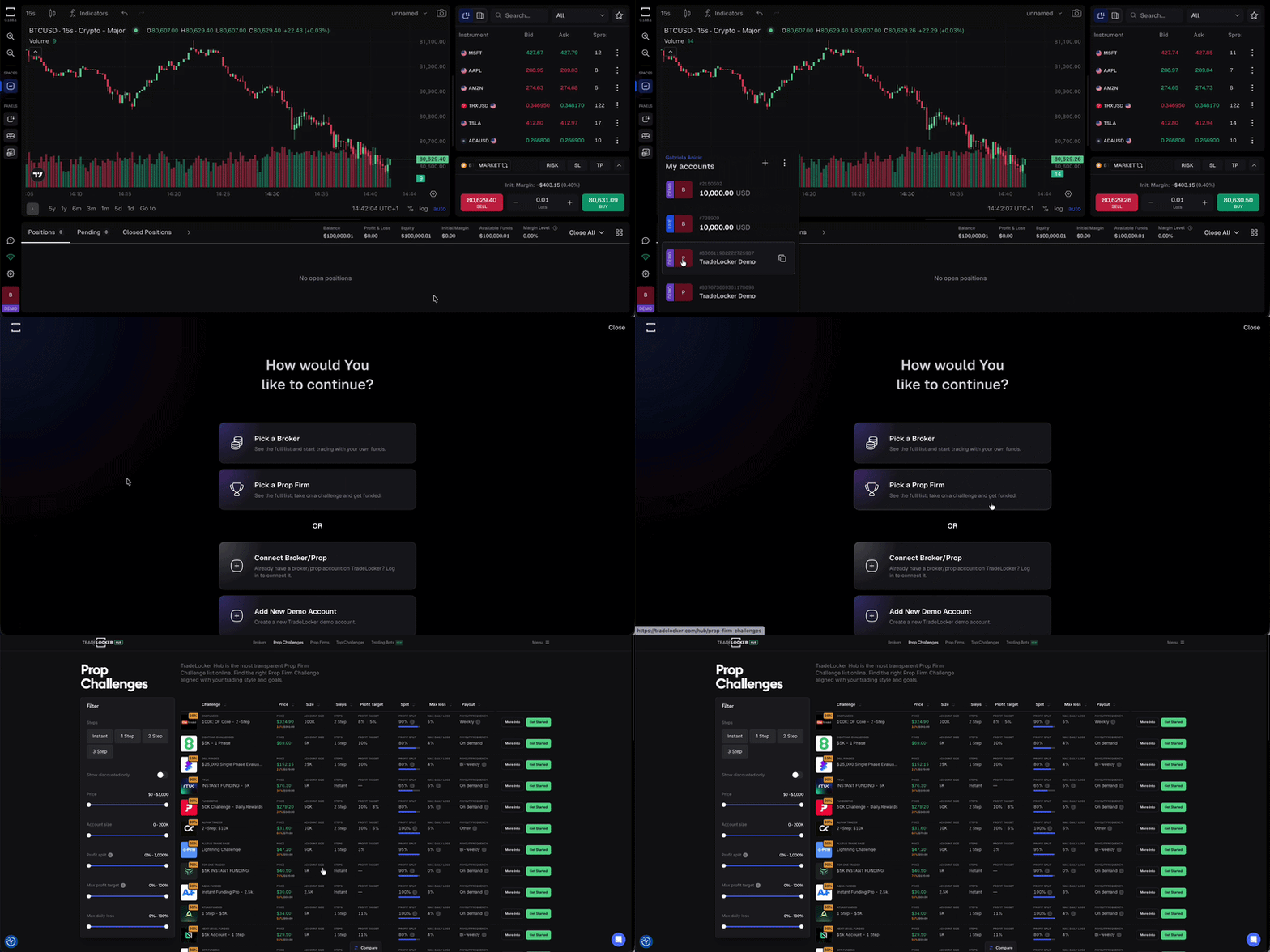
Switching between accounts
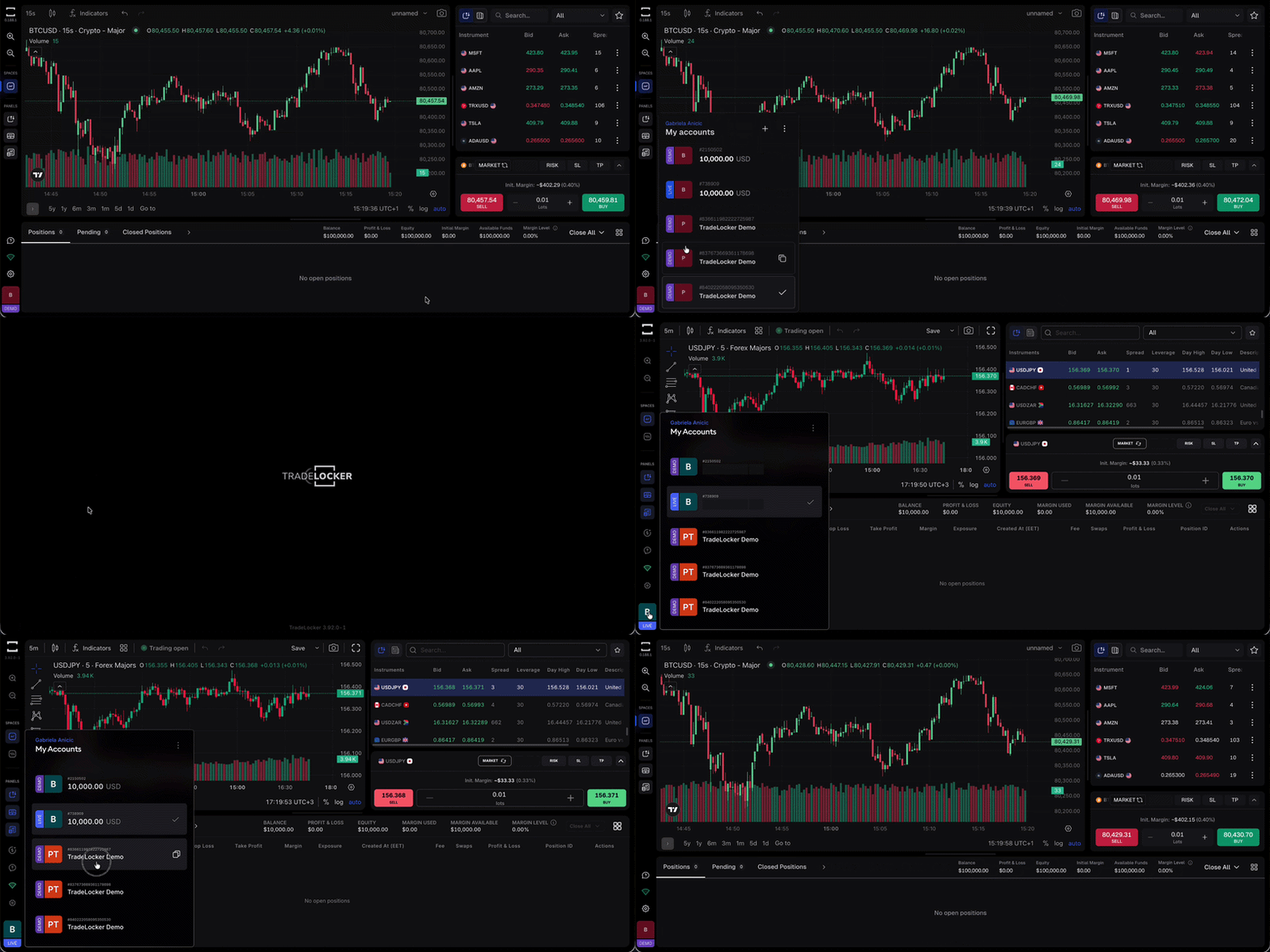
Once you have multiple accounts connected, switching is instant. Click the account box in the bottom left corner, select the account you want to trade on, and you’re in — no logging out, no separate logins.
Help us build the perfect trading platform that prioritises your needs and preferences. Join our Discord community to meet the TradeLocker team and other traders, discuss upcoming features, and chat with us directly.
